


How to Perform IBM Notes to EML Conversion Easily
Perform IBM Notes to EML Conversion easily and securely. Fast, reliable steps to migrate emails without data loss or hassle.


IBM Notes is still used by a lot of businesses to handle emails, contacts, and calendars. The platform keeps mailbox data as NSF (Notes Storage Facility) files, which can only be opened in the same environment. IBM Notes to EML conversion is needed when users switch to a different email client or need a safe backup in a format that works with all email clients.
Many desktop email programs, such as Microsoft Outlook, Mozilla Thunderbird, and Windows Mail, support the EML email file format. People can simply open and manage emails without having to utilize IBM Notes if they convert NSF files to EML.
We go over the pros and cons of both manual and professional ways to convert IBM Notes to EML in this guide.
Why IBM Notes to EML Conversion Is Important
A lot of people look for IBM Notes to EML conversion because of problems with compatibility and access. Here are the key reasons:
- To migrate emails to a different email program
- To make an email backup that is safe and easy to use
- To read emails without having to install IBM Notes
- To make it work better on different platforms
EML files hold single email messages, which makes it easy to sort, migrate, and save them.
Manual Method for IBM Notes to EML Conversion
IBM Notes does not have a built-in option to export large amounts of data to EML format. People can still store emails one at a time, though. This strategy only works for small mailboxes.
How to Manually Convert IBM Notes to EML
Step 1. Open IBM Notes and sign in to your email account.
Open IBM Notes and sign in to your email.
Step 2: Choose the Email
Pick the email you want to convert.
Step 3: Click on File > Save As.
Choose Save As from the File menu.
Step 4: Choose the Type of File
Select either "EML" or "RFC 822" format, depending on your version.
Step 5: Choose the Destination Folder
Select the desired location for file storage, then click Save.
You have to do these procedures over and over for each email you want to convert.
Drawbacks of Manually Converting IBM Notes to EML
The manual method is practical, however, it has certain issues.
- You have to save each email separately.
- No support for batch conversion
- Takes a long time for big mailboxes
- The folder structure is not kept.
- More likely to make mistakes
Because of these constraints, the manual method doesn't work for businesses or people with huge NSF files.
Professional Method for IBM Notes to EML Conversion
Many users prefer a professional conversion tool because it provides faster and more accurate results. A dedicated solution can make the process of IBM Notes to EML Conversion easier and lower the risk of losing data or having formatting problems.
One alternative for converting NSF files to EML format is TrustVare NSF to EML Converter, which keeps the original email structure and attachments intact.
How to Use Professional Software for IBM Notes to EML Conversion
Step 1: Get the Software
Get the tool and set it up on your Windows computer.
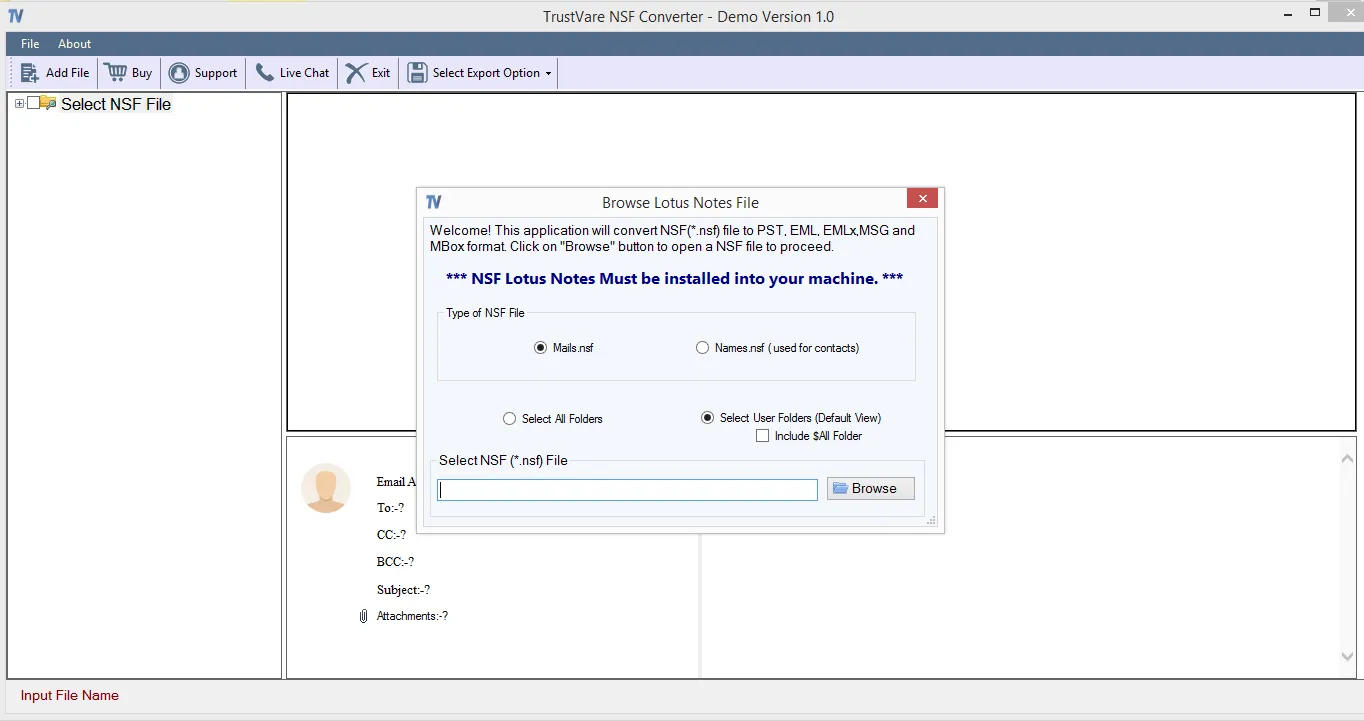
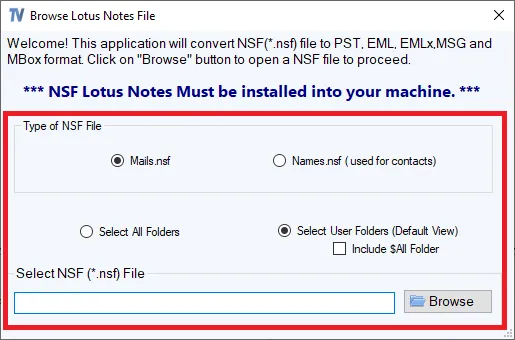
Step 2: Add the NSF file
Look through the NSF files and choose the one you want to convert.
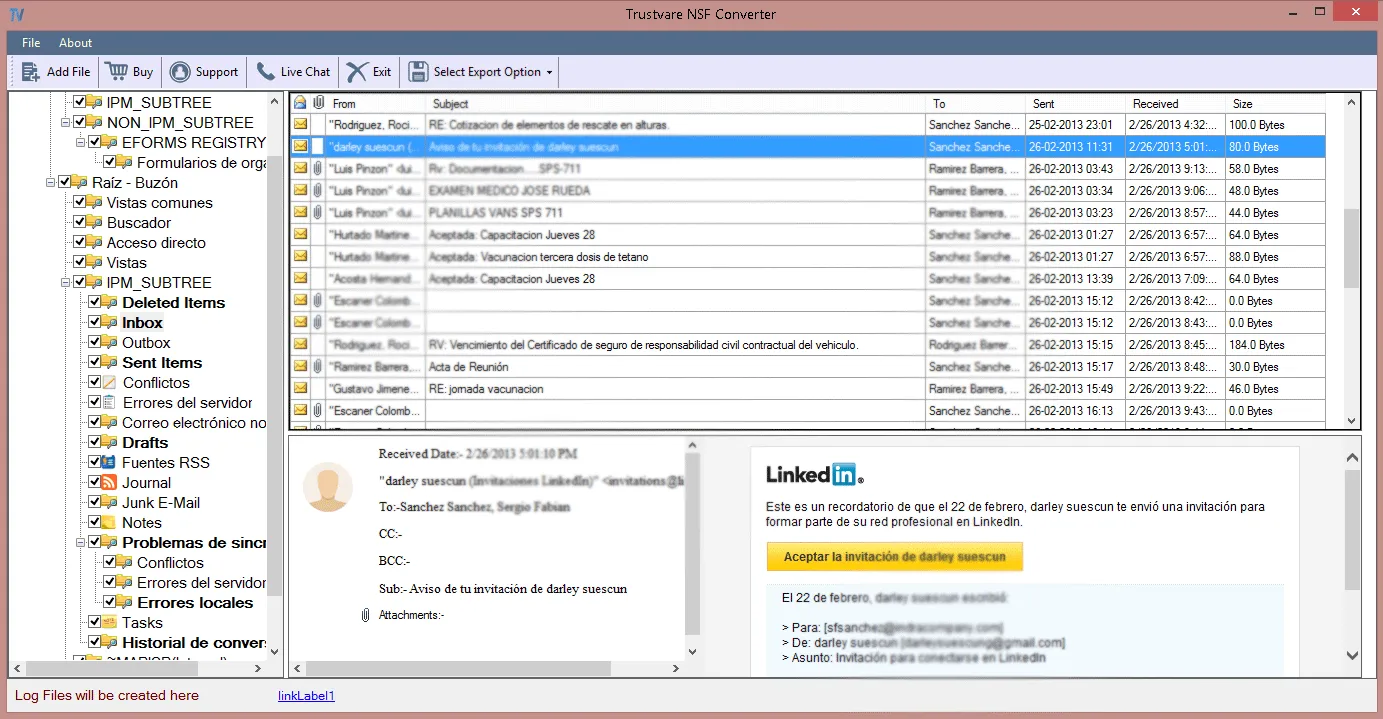
Step 3: Look at the data in your mailbox
Check your emails and choose the right folders if you need to.
Step 4: Pick EML as the output format
Choose EML from the list of alternatives for exporting.
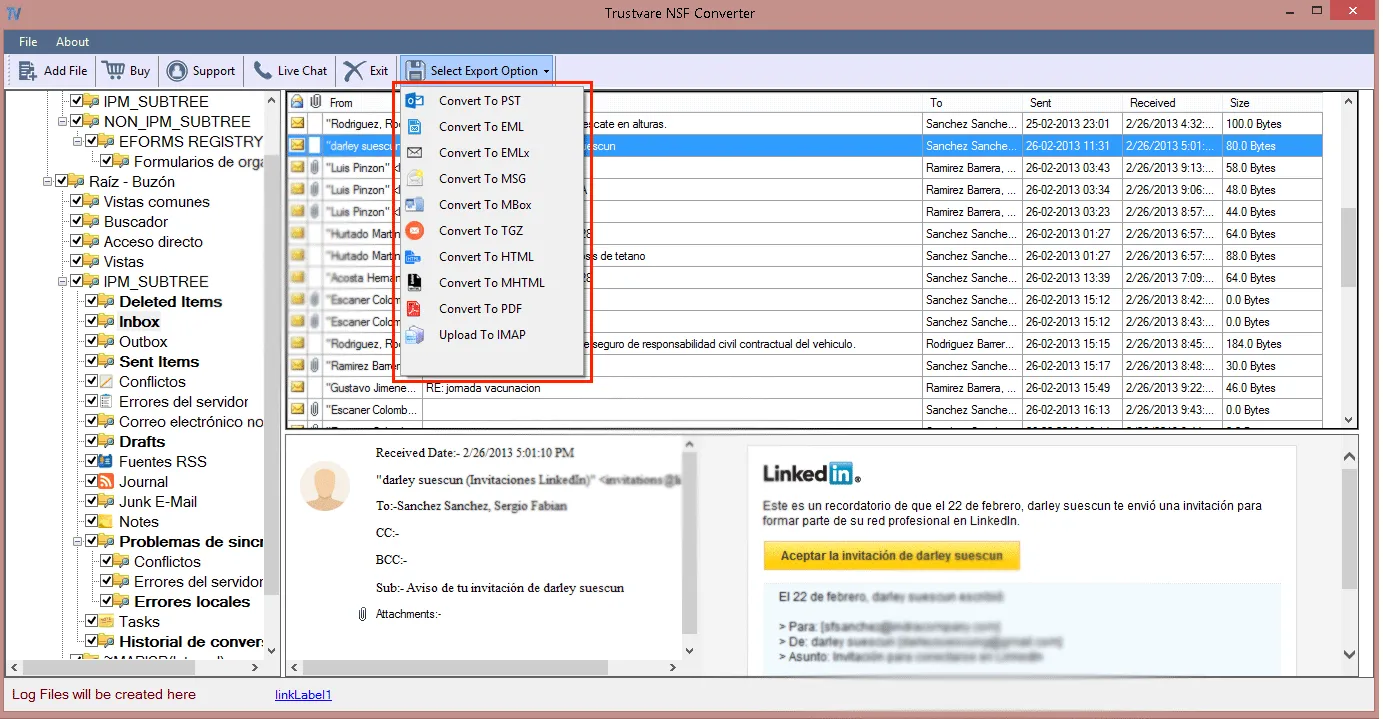
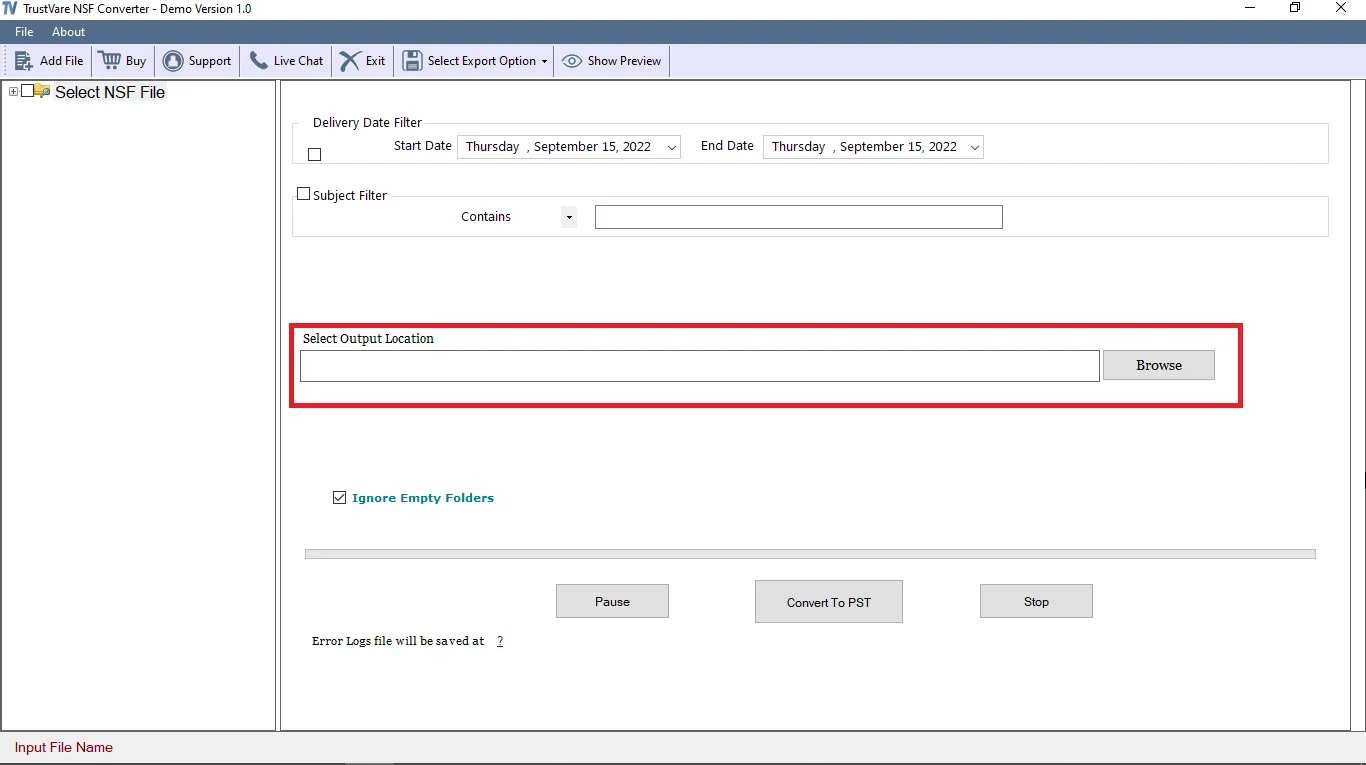
Step: Select the Location
choose the location where you like to save the file.
Step 6: Begin the Conversion Process
To start IBM Notes to EML conversion, click the Convert button.
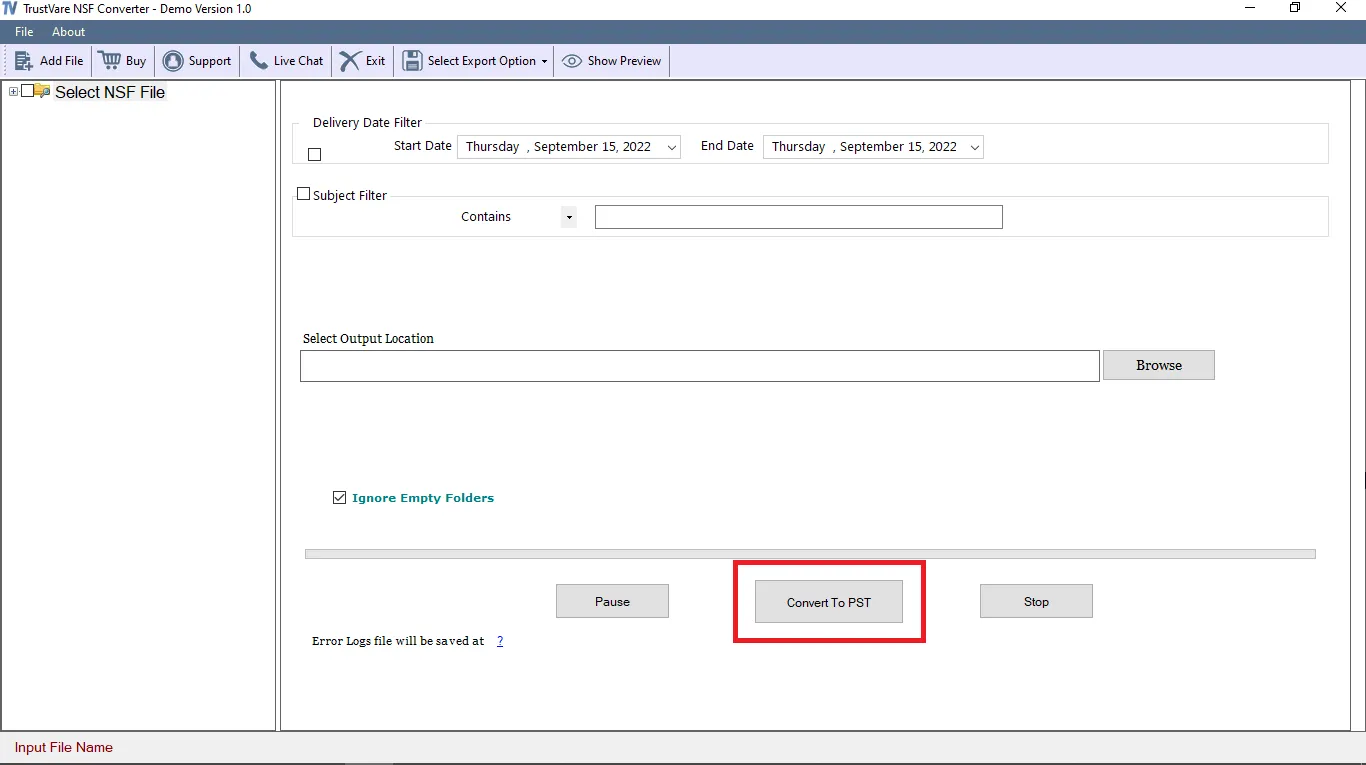
The software saves the converted EML files in the chosen directory when it is done.
Benefits of Professional Lotus Notes to EML Conversion
There are many benefits to using a professional solution:
- Allows for bulk conversion of NSF files
- Keeps the original formatting of the email
- Keeps attachments and metadata safe
- Keeps the folder structure the same
- It saves time and effort.
This approach is especially helpful for IT managers, businesses, and users who handle large volumes of email.
Tips for Safe IBM Notes to EML Conversion
Do the following to make sure everything works well:
- Make a copy of your NSF file every time.
- Check to make sure that your NSF file is not broken.
- Before you start the conversion, close IBM Notes.
- Use a demo version to test the process.
These steps help keep data safe and avoid mistakes.
Final Thoughts
IBM Notes to EML conversion is a practical solution for improving compatibility, creating secure backups, and ensuring smooth email migration. The manual method can work for a small number of emails, but it is not good for converting a lot of emails at once and takes a lot of time and energy.
Using a professional tool makes the procedure easier for bigger mailboxes and more dependable results. It helps keep email data, attachments, and folder structure safe while lowering the chance of mistakes.
You can safely and smoothly convert IBM Notes to EML by choosing the right approach for your needs. by choosing the correct approach for your needs.
Frequently Asked Questions
Q1. Is there a way to convert a lot of IBM Notes files to EML at once?
No, most versions of IBM Notes don't let you export a lot of files directly to EML format.
Q2. Can I manually convert multiple NSF files at once?
No, the manual technique only lets you save one email at a time.
Q3. Does converting NSF files to EML format preserve attachments?
Yes, if you use a trustworthy professional application, attachments and email attributes will stay the same.
Q4. Which method is best for businesses?
A professional conversion tool is better for firms that work with a lot of data.
Q5. Do other email clients work with EML files?
Yes, many common email programs can open EML files, which makes them very compatible and easy to access.